PDF.net Free or Paid? A Plain-English Guide to the Trial, Tools, and Cancellation
Author
Ethan Walker
Date Published
Reading Time
9 min read

You get a PDF that needs a quick signature or a sentence changed. You don't want to fire up Adobe Acrobat for something that should take two minutes. So you search, land on PDF.net, and the homepage looks simple enough that you just start uploading.
PDF.net is a browser-based PDF editor that handles editing, signing, merging, splitting, compressing, converting, and password protection, all from a browser tab with no software to install. I went through the tool directly, checked its 2026 pricing against Capterra's verified listing, and pulled screenshots before writing this guide.
The one thing worth knowing before you upload anything: PDF.net is not free, and it doesn't make that obvious until after you finish your edits. The pricing section below starts with a table so you can check the numbers first.
The short version before you start
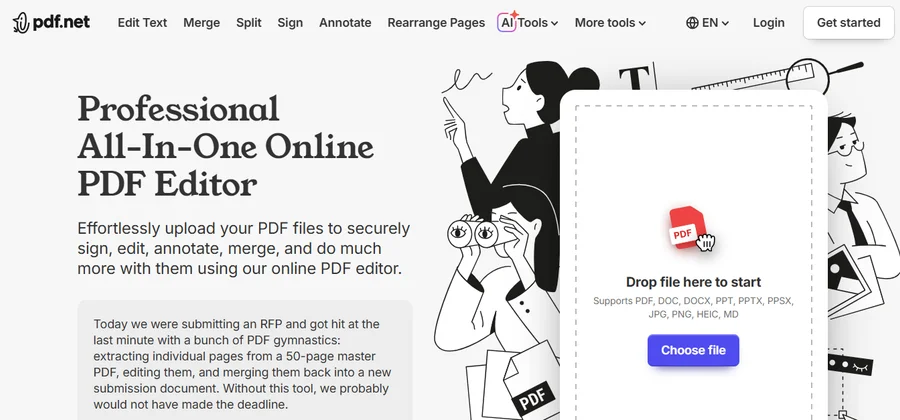
PDF.net is a browser-based PDF editor that lets you edit text, sign documents, merge or split files, compress, convert, and password-protect PDFs without installing any software. It runs on a paid trial model, with 14-day plans starting at $0.95, not a permanently free tier. Files are deleted automatically after processing.
PDF.net Pricing
As of September 2026, PDF.net runs two separate pricing paths.
Standard subscription (pdf.net direct):
Plan | What you pay | What happens after |
14-day Limited Access | $0.95 | Sign, merge, convert, compress; unlimited downloads |
14-day Full Access | $1.95 | Auto-renews at $49.88/month unless you cancel; up to 10 seats |
Annual plan | $299.40/user/year | Full features, billed once per year |
Pricing re-checked against Capterra's pdf.net listing on September 1, 2026.
The $1.95 trial rolling into $49.88/month is the number that catches people off guard. This isn't a fringe complaint either: PDF.net's Trustpilot page has grown to over 1,020 reviews, sitting at a 4.4-star overall rating, with billing surprise as the most repeated theme in the lower-starred reviews.
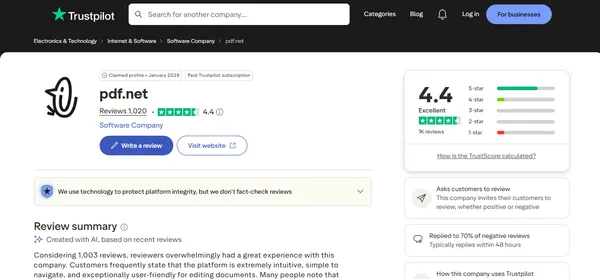
Several users report not seeing a warning during signup, only getting the payment prompt after finishing their edits and clicking download. Read the fine print on the signup screen before you enter a card.
AppSumo lifetime deal (separate channel): When active, this was a one-time payment with four tiers from $59 to $399, each unlocking more storage and a larger file size cap. Checked live on September 1, 2026, the AppSumo listing still shows it as sold out, with only a "notify me" option. The deal may return, but there is no live checkout link right now.
Getting Started: Do You Even Need to Log In?
Not always. The homepage lets you drop a file straight into the uploader without creating an account. If you need to convert a JPG, PNG, DOC, DOCX, PPT, or PPTX into a PDF, or just want to quickly work with a file, you can do that right from the homepage. No login, no app download.
Where you hit a wall is the moment you need anything beyond that, like editing text, signing, merging, or compressing. Those tools require an account.
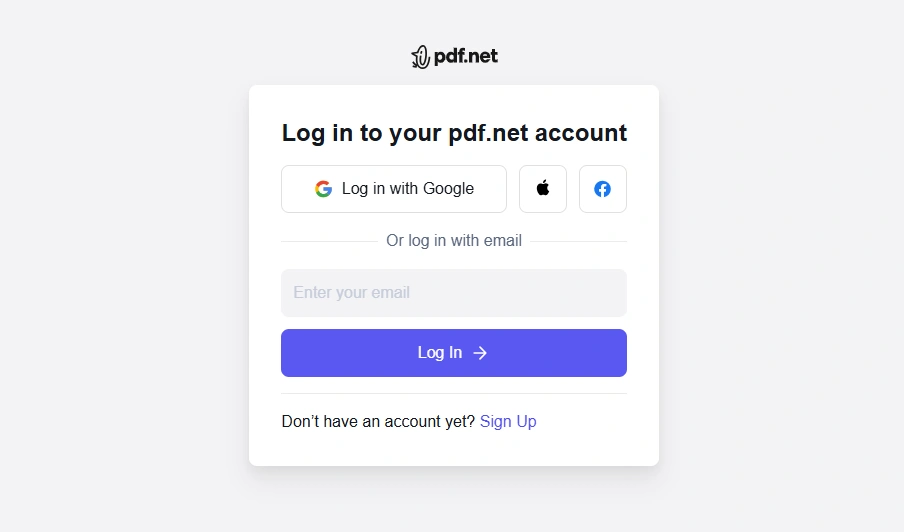
Signing up takes under a minute. PDF.net lets you log in with Google, Apple, Facebook, or an email and password.
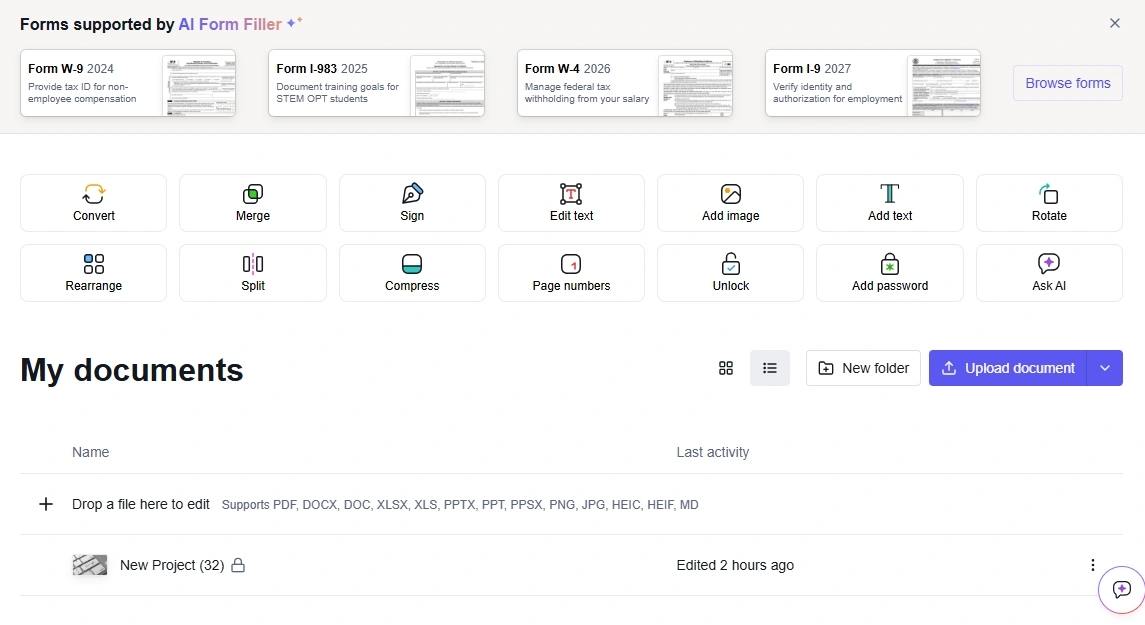
Once you're in, the dashboard puts all the tools in front of you in two rows: Convert, Merge, Sign, Edit text, Add image, Add text, Draw, Rotate, Rearrange, Split, Compress, Page numbers, Unlock, and Add password. There's also an AI Form Filler at the top, which currently supports four U.S. forms: W-9, I-983, W-4, and I-9.
Five Tasks PDF.net Handles Well
Editing text directly in a PDF. Click the Text tool, then click into any existing text block on the page. PDF.net lets you type directly into that block without converting the file first. The Draw and Image tools sit right next to Text in the toolbar, so you can add a hand-drawn mark-up or drop in a logo in the same editing pass. Moving text between pages is the one area that feels less precise than a desktop editor.
Merging or splitting files. For Merge, bring in multiple files and arrange them in the order you want before PDF.net stitches them into one document. For Split, open the file and pull out the specific pages you need into a separate PDF. Merge is the most-used feature in the PDF software category, with 42% of buyers rating it a top priority according to Capterra.
Adding a signature. Click Sign and a panel opens with three options: Type your name into a ready-made font with color choices, Draw it freehand with your mouse or trackpad, or Upload a signature image from your device. When I opened this panel directly in the tool, the "Save for future use" checkbox is ticked by default, which means your signature carries over to the next session automatically. Once placed, you can drag and resize it anywhere on the page before downloading.
Compressing a large file. Click Compress and PDF.net reduces file size while keeping text and images readable. The base plan caps uploads at 15MB, so running a large scanned document through the compressor before merging or editing it can be the difference between the tool accepting or rejecting your file.
Converting to another format. The Convert tool opens a panel with six output options: DOCX (Word), PPTX (PowerPoint), XLSX (Excel), JPG, PNG, and CSV. A scanned spreadsheet, a locked slide deck, or a PDF you need to edit in Word can come back out in its original format. Formatting holds up well on simple documents. Pages with complex column layouts or mixed tables are where conversion accuracy tends to slip.
Two more tools in the editor worth knowing
Compare lines up two versions of a document side by side, useful for spotting what changed between a draft and a revised contract.
Password lets you set or remove protection using AES-128 encryption. The dialog inside the tool is explicit: there is no recovery method if you forget a password you set. The Unlock tool works on externally password-protected files you have the right to access, not on files you've locked and lost the key to.
Need to Cancel PDF.net? Here Are the Four Steps
If you're using the trial for a single task, cancel before the 14-day window closes. PDF.net's own help center confirms these steps:
- Step 1: Log in to your PDF.net accountOpen pdf.net in your browser and sign in with your Google, Apple, Facebook, or email account.
- Step 2: Go to profile or account settingsClick your profile icon or name in the top corner to access your account settings page.
- Step 3: Open the subscription management sectionInside settings, find the subscription or billing section where your active plan is listed.
- Step 4: Cancel your subscriptionSelect the cancellation option and confirm. Do this before day 14 of your trial to avoid the auto-renewal charge.
Set a calendar reminder for day 12 or 13.
The official cancellation page is at help.pdf.net/article/4-how-do-i-cancel-my-subscription.
When Should You Use a Different PDF Tool Instead?
PDF.net covers everyday PDF tasks well. There are four specific situations where it is not the right fit.
Scanned documents with text you need to extract. PDF.net has no OCR feature yet. If you need to pull editable text from a scanned page or an image-based PDF, Adobe Acrobat, iLovePDF, or Sejda are better options right now. The pdf.net team has said OCR is in development, but it is not live as of this writing.
Files over 15MB on the base plan. The standard subscription caps uploads at 15MB. Presentation decks, multi-page scanned documents, and anything with embedded images frequently exceed that. The annual plan and higher AppSumo tiers raise this limit to 100MB.
Anything that requires working offline. PDF.net runs entirely in the browser. No internet connection means no tool access.
Passwords you might forget. If you lock a file and lose the password, PDF.net cannot help you get back in. The warning is inside the tool itself before you set the password, so this is not a hidden limitation, but it is worth knowing before you encrypt anything important.
Who PDF.net Actually Works For
PDF.net's strongest use case is the person who needs PDF tools a few times a month but cannot justify $24.99/month for Adobe Acrobat. A freelancer signing client contracts, a student submitting a multi-source PDF for coursework, or a small business owner compressing a report before emailing it to a client: these are the situations the tool handles quickly.
The AI Form Filler is a narrower but specific win for U.S. freelancers. Filling out a W-9 manually is tedious. Having the AI pre-fill the form cuts that down to a quick review rather than typing from scratch.
PDF.net Alternatives Worth Knowing
PDF.net covers the basics well, but it is not the right fit for every situation. Here are four tools worth comparing depending on what you actually need.
Sejda is the closest comparison to PDF.net in terms of how it works: browser-based, no install, handles editing, merging, splitting, converting, signing, and compressing. The key difference is Sejda has a genuinely usable free tier, capped at 3 tasks per hour, with files auto-deleted after 2 hours. If you only need PDFs edited occasionally, that free tier covers most casual tasks without a credit card. The paid web plan runs $7.50/month, and a Desktop plus Web annual plan costs $63/year for offline access too. It also has OCR, which PDF.net does not. Full breakdown in this Sejda PDF editor review.
iLovePDF has a permanently free tier for merging, splitting, compressing, and converting, with no trial expiry. File size limits are more generous than PDF.net's 15MB base cap, and like Sejda it includes OCR. If you want to avoid managing any trial cancellation, iLovePDF's free tier handles most of what PDF.net's $0.95 trial does, at no cost. The paid plan starts at $9/month.
Adobe Acrobat is the full-featured option for people who work with PDFs daily. Acrobat Standard starts at $24.99/month on monthly billing, and Acrobat Pro at $29.99/month. Both are more expensive than PDF.net's trial entry point, but if you are a regular user who would land on PDF.net's $49.88/month auto-renewal anyway, Acrobat Standard is cheaper and adds OCR, a native desktop app, and full offline access on top.
Smallpdf sits between the free options and Adobe. Its free tier is limited to a handful of daily tasks, but the Pro plan runs $15/month on monthly billing. It includes OCR and over 30 document tools, and at $15/month it is significantly cheaper than PDF.net's auto-renewal rate for regular users.
Tool | Free tier | OCR | Monthly price | Offline access |
PDF.net | Trial only ($0.95 for 14 days) | No | $49.88/month after trial | No |
Sejda | Yes (3 tasks/hour) | Yes | $7.50/month | $63/year (desktop plan) |
iLovePDF | Yes | Yes | $9/month | No |
Adobe Acrobat | No | Yes | From $24.99/month | Yes |
Smallpdf | Limited | Yes | $15/month | No |
Frequently Asked Questions
Is PDF.net free?▾
Is the AppSumo lifetime deal for PDF.net still available?▾
Can I use PDF.net on my phone?▾
Does PDF.net have an OCR feature?▾
Is PDF.net safe to use?▾
PDF.net vs Adobe Acrobat: which one should you use?▾
How do I cancel my PDF.net subscription?▾
Written by
Ethan Walker
Ethan Walker is a content strategist and SaaS industry veteran with over 10 years in the technology space and 5 years focused exclusively on AI. At FirmBees, he sets the editorial direction, selects which companies earn a full overview, and holds every piece to a standard built on verified data rather than vendor claims. His work is shaped by years of competitive analysis and hands-on product evaluation, written for readers making real purchasing decisions.
Comments
Leave a comment
Related posts

Is Sejda PDF Editor Worth It in 2026?
Sejda's free PDF editor is real, not a stripped-down demo, but it caps you at 3 tasks an hour with limits that change by tool. Here's what the free tier actually includes, the real pricing ladder with team discounts, and what real users say after switching from Adobe Acrobat.
-600x338-yZUY6wfWDwNoXjx2sWuPuGw7Tg8qGl.webp%3F2026-08-24T19%253A59%253A47.360Z&w=3840&q=82)
Cutout Pro Review 2026: Pricing, Privacy Risks, and Whether It's Worth Your Data
Cutout Pro carries a verified 2024 breach, a 1.6-star Trustpilot record, and a naming collision that sends users to the wrong app. Here's what's safe to upload and what isn't.

Adobe Express animate your voice: free guide
Adobe Express lets you animate your voice for free, no design skill needed. Here's the full walkthrough, real file limits, and a common bug fix, all from a hands-on test.